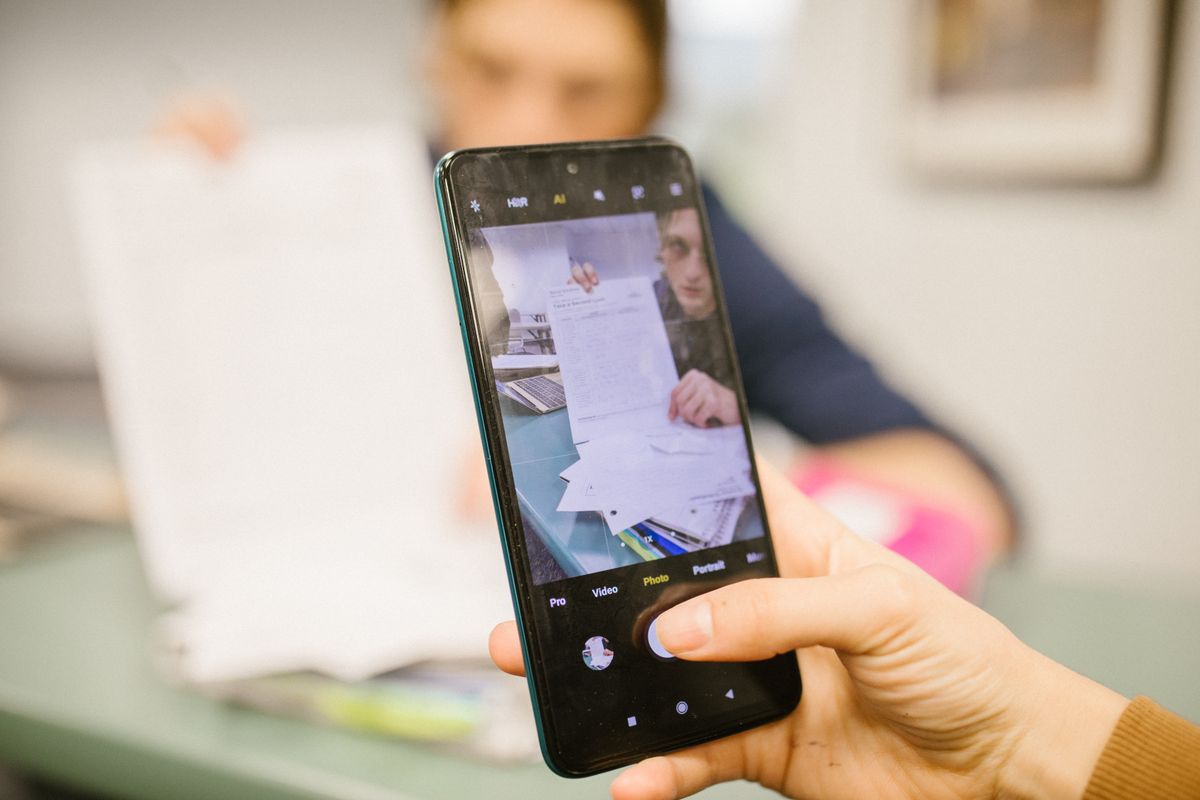
A landlord wants your ID and payslips. An insurer asks for receipts. A school needs a signed form back by tonight. You don't need a scanner — your phone camera and a free converter can turn paper into a clean, single PDF in a few minutes.
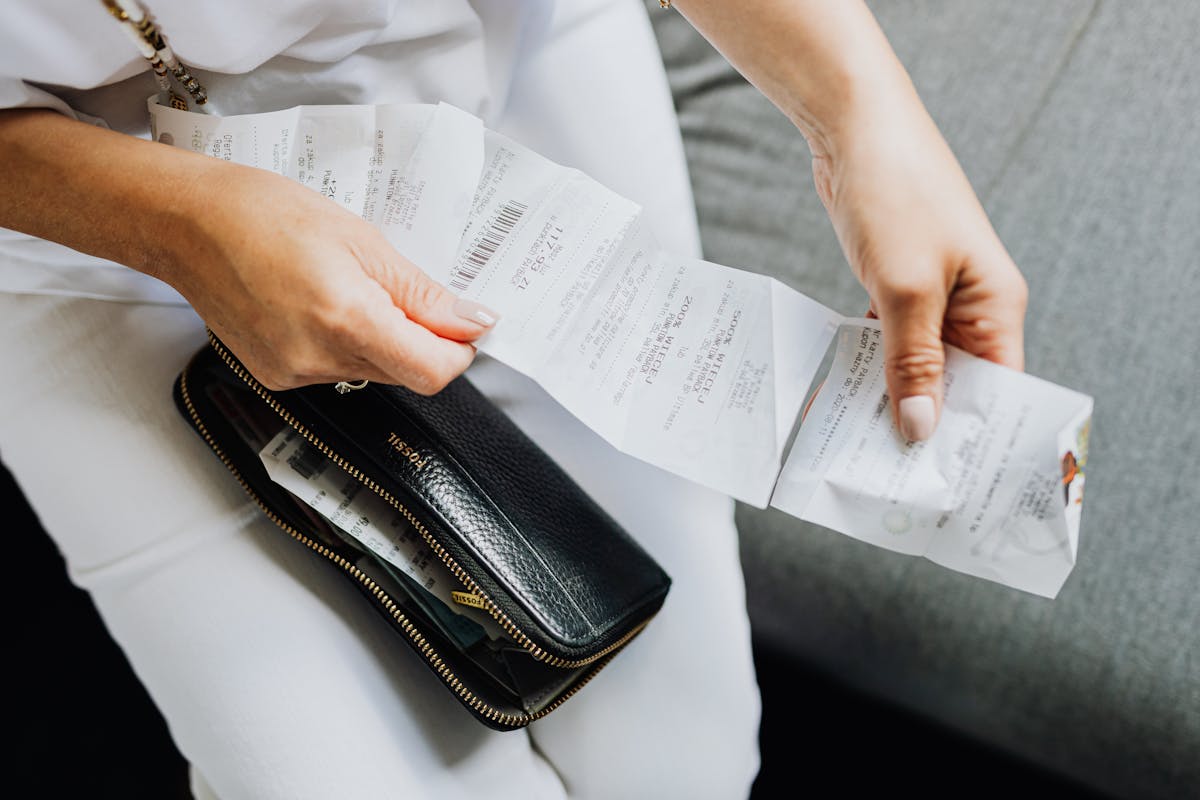
Step 1: Take good photos
The quality of the PDF depends almost entirely on the photos. A few habits make a big difference:
- Lay the page flat on a dark, plain surface so the edges stand out.
- Use soft, even light. Daylight from a window is ideal. Turn the flash off — it causes glare and hot spots.
- Shoot from directly above, with the phone parallel to the page, so lines stay straight.
- Fill the frame with the page, leaving a small margin around it.
- Check focus by zooming into the photo before moving on.
Step 2: Trim the edges
If the table or your fingers are in the shot, crop them out with the free Image Cropper. Tidy edges make the final PDF look like a real scan.
Step 3: Combine the photos into one PDF
- Open the JPG to PDF converter and choose all the photos.
- Use the arrows to put the pages in the right order.
- Choose A4 or US Letter so every page has the same size — photos are centred without stretching.
- Click Create PDF and download it.
Your photos are combined in your browser, so personal documents are never uploaded.
iPhone photos: HEIC first
iPhones save photos as HEIC by default, which many tools don't accept. Convert them with HEIC to JPG first. To get JPGs straight from the camera instead, go to Settings → Camera → Formats → Most Compatible.
Step 4: Make the file smaller
Phone photos are large, so a 5-page PDF can easily be 15 MB. Before emailing or uploading it, run it through Compress PDF on the Strong level — scanned pages usually shrink by well over half.
FAQ
Can I mix PNG screenshots with photos? Yes — use Image to PDF, which accepts JPG, PNG and WebP together.
Will the photos lose quality inside the PDF? No. JPG photos are placed into the PDF as they are, without re-compressing.
Should I remove location data first? Phone photos can contain GPS coordinates. If you're sharing the photos themselves, clean them with the EXIF Metadata Remover.
Try it now
Combine your photos with the free JPG to PDF converter.
Related reading
See How to Turn Photos into a Single PDF and How to Compress a PDF to Fit an Email or Upload Limit. Browse the full blog for more guides.