You need pages 1 through 3 of a chapter, but the exported PDF starts with the cover and contents instead. The problem may be numbering: a printed label on the page is not always the same as that page's position in the file.
Use Extract PDF Pages after identifying the physical page positions you need. This avoids confusing chapter numbering, Roman numerals, and viewer labels with the sequence used by the extraction tool.
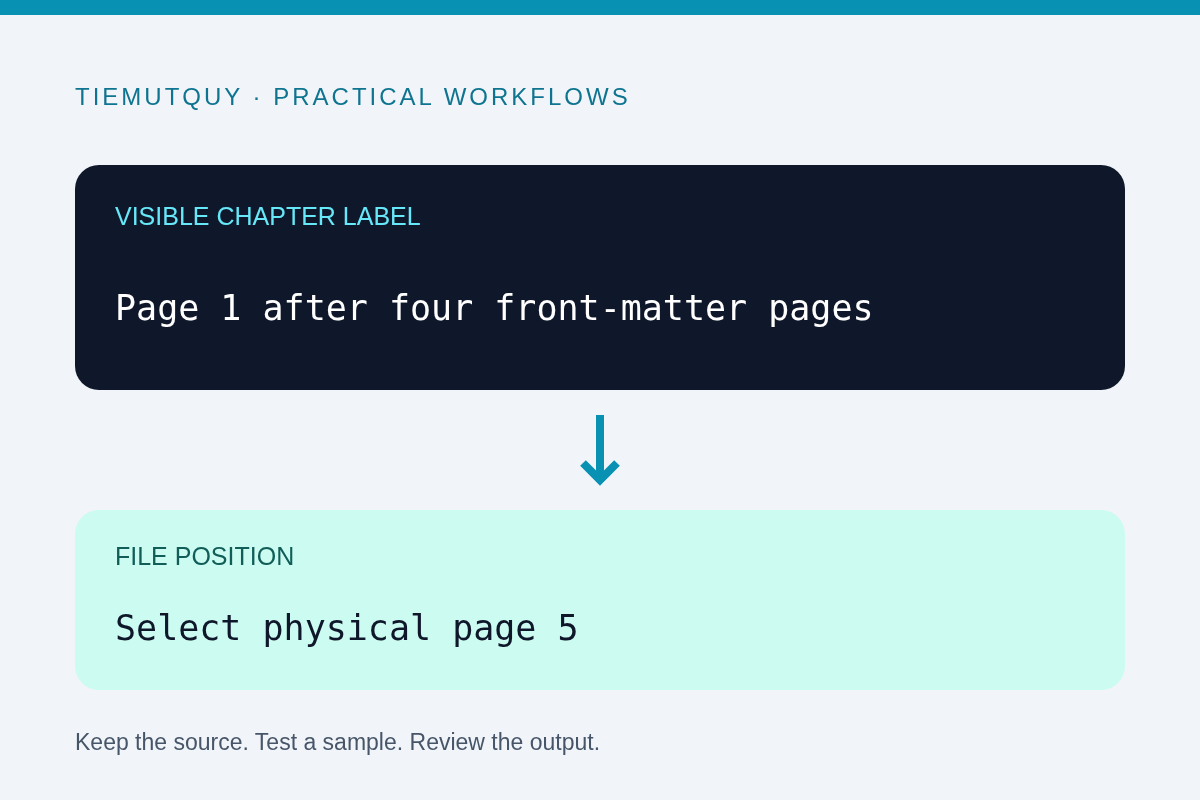
Separate the three kinds of number
A PDF can have a visible number printed in its artwork, a logical page label shown by a viewer, and a physical position in the document. These may agree in a simple export, but covers and front matter often make them diverge.
For example, a report might contain a cover, three preliminary pages, and then the main text. The first main-text page displays 1, while its physical position is 5. A viewer may show a label such as 1 for that page, but an extraction tool that counts from the beginning still needs position 5.
The tool on this site uses one-based physical positions: the first page in the file is page 1. It does not ask for a chapter's printed page number.
Create a small mapping before selecting a range
Open the source PDF and inspect its thumbnails. Count from the beginning of the file, including blank pages and covers. Record the physical position of the first and last page you want.
For the example above, printed chapter pages 1 through 3 correspond to physical positions 5 through 7. Enter:
5-7
If the document restarts numbering later, do not assume the same offset applies throughout. A merged appendix or inserted sheet can shift the mapping again. Verify each separate section you intend to extract.
A short written note such as chapter label 1 = physical page 5 is enough for many small documents. It also helps someone else reproduce the selection without relying on the viewer's current display mode.
Understand range syntax and ordering
The tool accepts individual pages and ranges separated by commas. For example:
2, 5-7, 10
This selects physical pages 2, 5, 6, 7, and 10. A trailing range such as 8- means from page 8 to the end of the source file.
Selections are deduplicated and sorted in ascending order. Entering 7, 5 does not create a two-page document with page 7 before page 5. Use Reorder PDF Pages when the desired output order differs from the source order.
The tool rejects page zero, backward ranges, and positions beyond the file's page count. A valid range still needs a human check: selecting the wrong existing pages will not trigger a syntax error.
Verify the extracted copy
Open the downloaded PDF and inspect its first page, last page, and total count. Confirm that diagrams and captions remain with the text they explain. If you selected multiple sections, check every join between them.
The visible numbers printed on the pages may remain unchanged. Extracting a section does not necessarily make its artwork start at 1. If you want additional numbering on a new document, use Add Page Numbers to PDF and review how the new numbers interact with existing ones.
Page extraction also does not turn a scanned image into searchable text or remove sensitive content from selected pages. Those are separate document-processing tasks.
Preserve context and the original file
Keep the source unchanged and give the output a meaningful filename, such as report-chapter-1-physical-5-7.pdf. This makes the selection clear when the visible labels do not match the file positions.
Before sharing, check whether the extracted section needs its cover, definitions, or explanatory notes to make sense. A technically correct selection can still omit context that the recipient needs.
Frequently asked questions
Should I enter Roman numerals from the viewer?
No. Use the physical positions counted from the first page of the file. The range field expects ordinary numeric positions.
Can I extract the same page twice with one selection?
Repeated selections are deduplicated in this tool. Do not rely on duplicate numbers to produce repeated output pages.
Why did page 1 appear unchanged after extraction?
The printed number is part of the page content. Extracting pages changes the document's page set, not necessarily those visible labels.