OCR can turn a screenshot or scanned page into editable text, but a convincing-looking result can still contain mistakes. A zero may become a capital O, an account code may lose a character, or a heading may merge with the line below it.
Start with Image to Text, then compare the extracted text with the source image before using it. Recognition is a useful first draft; accuracy depends on both image quality and the review that follows.
Improve the source before recognition
Use the clearest original image available. A full-resolution scan usually contains more useful detail than a screenshot of a thumbnail. Enlarging a blurry image cannot recover characters that were never captured clearly.
Crop away unrelated borders and keep the text upright. Glare, shadows, a curved page, and steep camera angles can obscure letter shapes. Retaking a photo in even light may improve recognition more than repeatedly processing the same poor source.
The Image Cropper can help isolate the relevant text area. Keep enough context around columns and headings to understand the reading order. Save the unedited original so you can check ambiguous characters later.
Select the language that matches the page
The OCR tool includes English, Vietnamese, a combined Vietnamese-and-English option, and several additional languages. Choose the language closest to the actual source rather than leaving a mismatched option selected.
For an English receipt, start with English. For a bilingual Vietnamese and English document, the combined option may be more suitable. A language setting does not guarantee that names, product codes, or specialist abbreviations will be recognized correctly.
The recognition engine and language data download on first use, so the first run can take longer. The image recognition itself runs in your browser. A model download is different from uploading the source document for remote recognition.
Review high-risk characters first
Compare identifiers and numeric values character by character. Common visual ambiguities include 0 and O, 1 and lowercase l, and punctuation that looks like a decimal separator.
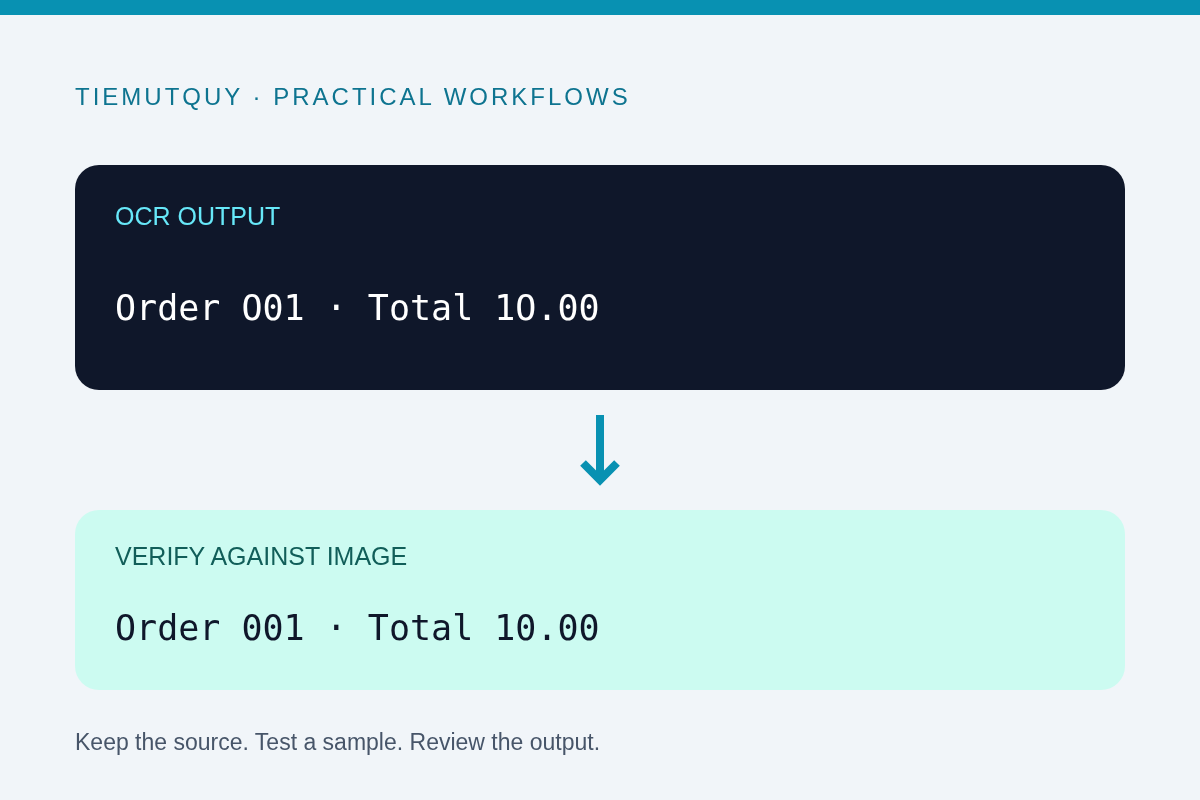
For a hypothetical receipt, OCR might return 1O.00 where the source says 10.00. Do not assume every O in a numeric-looking line should become zero. A product code can legitimately contain both letters and digits.
Use surrounding context to flag a question, then resolve it against the source. If the image itself is unreadable, mark the value as uncertain instead of inventing a correction. This is especially important for references that will be copied into another system.
Check structure as well as spelling
A page with columns may produce text in an unexpected reading order. Tables can lose alignment, and a total can appear beside the wrong label. Review headings, paragraph boundaries, bullet points, and table relationships separately from individual words.
The tool tidies trailing whitespace and repeated blank lines, but that does not reconstruct a document's full layout. If you need a table in a spreadsheet, verify the column boundaries before importing anything.
Use the Remove Empty Lines tool only after you understand which blank lines carry structure. Removing every separator can make extracted text harder to interpret. Preserve a copy of the initial OCR result before cleanup.
Use a two-pass proofreading workflow
On the first pass, compare the full text with the image and correct reading order and missing sections. On the second, focus on names, dates, quantities, prices, and identifiers. These details can be wrong even when the sentence sounds natural.
Use the Diff Checker to compare the initial output with the corrected version when you want a record of edits. A diff shows what you changed, not whether the changes match the original image.
Keep the source image beside the final text until review is complete. An edited text file alone cannot show whether an uncertain character was recognized or guessed.
Frequently asked questions
Can OCR restore text hidden by glare?
Not reliably. Capture a clearer image whenever the source is obscured rather than trusting a plausible reconstruction.
Should I replace every letter O with zero?
No. Global replacements can corrupt names and codes. Verify ambiguous characters against the original.
Does extracted text preserve tables perfectly?
No. Recognition may lose layout and reading order. Review table structure manually before using the data.