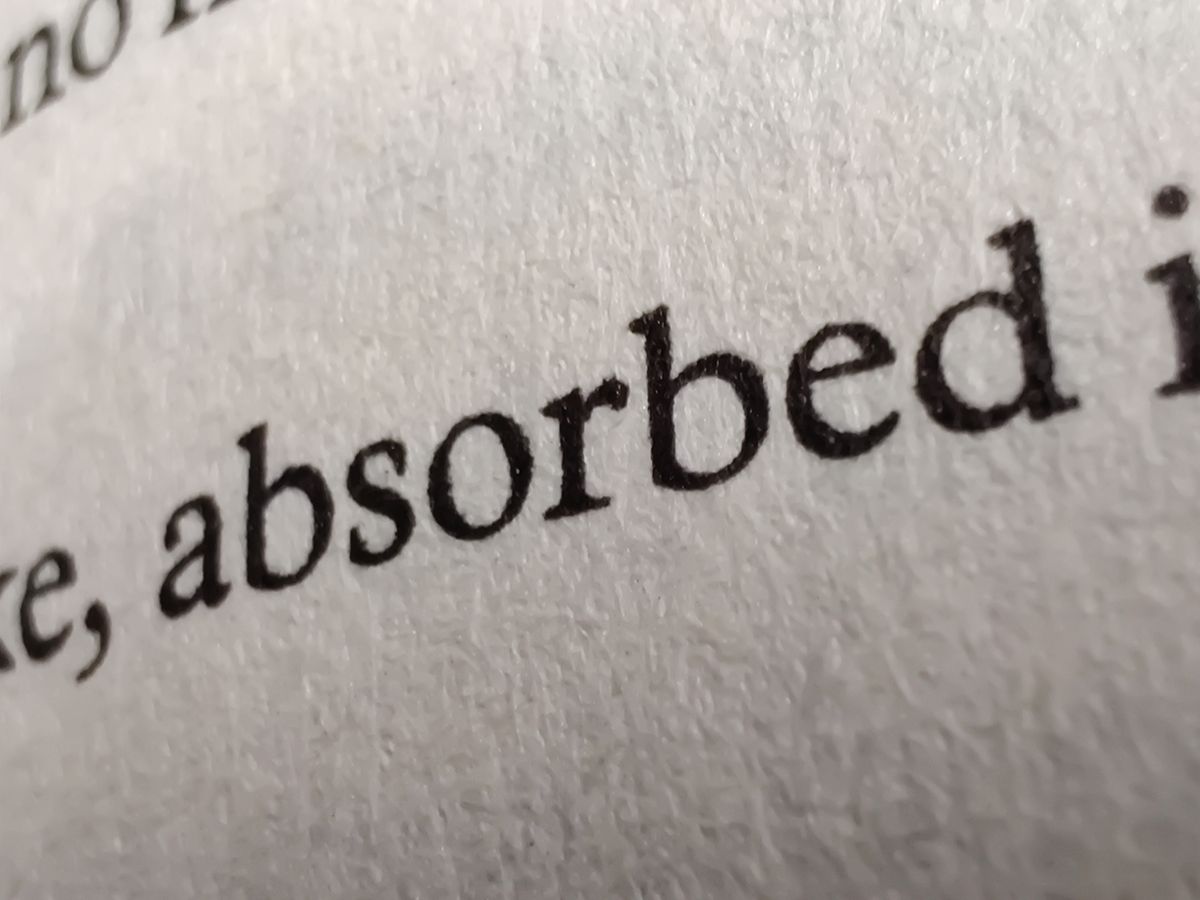
Retyping text from a screenshot, a photo of a sign or a scanned page is slow and error-prone. OCR — optical character recognition — reads the letters in an image and turns them into text you can copy, edit and search. You don't need to install anything or upload your image to a server.
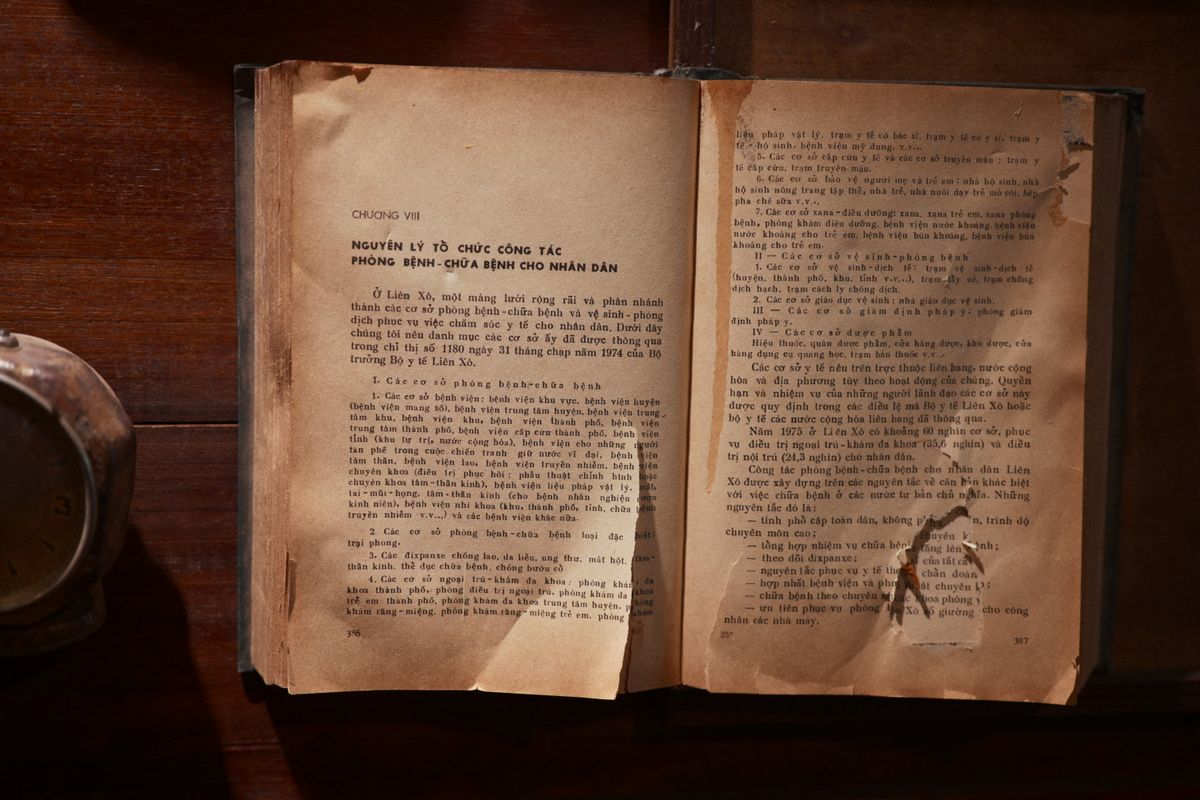
When image to text is useful
- Copying an error message or a paragraph from a screenshot.
- Pulling text from a photo of a document, menu, notice or whiteboard.
- Getting editable text from a scanned page that's only an image.
- Translating a sign or label: extract the text, then paste it into a translator.
How to extract text from an image
- Open the free Image to Text tool.
- Choose an image, drag it onto the box, or paste a screenshot with Ctrl+V (Cmd+V on Mac). JPG, PNG, WebP, BMP and GIF up to 15 MB are supported.
- Pick the language of the text — English, Vietnamese, Chinese (Simplified), Japanese, Korean, French, German or Spanish, or Vietnamese + English for mixed text.
- Click Extract text.
- Fix any mistakes directly in the result box, then copy it or download it as a .txt file.
The first run downloads the OCR engine and language data (a few megabytes per language), so it takes a little longer. They're cached afterwards, and later scans start almost immediately.
How to get better results
OCR is very accurate on clear printed text, and struggles when the image is poor. Before you extract:
- Crop to just the text you need — the Crop Image tool helps.
- Shoot straight on in good light; avoid shadows and steep angles.
- Make it bigger. Small text in a large photo is harder to read.
- Pick the right language. Accents and non-Latin scripts need the matching language data.
What OCR can't do well
- Handwriting — only neat block letters, and not reliably.
- Decorative fonts, low contrast, or text over busy backgrounds.
- Complex layouts like tables and multi-column pages: the text comes out, but the layout may need tidying.
Extracting text from a PDF
If you can select text in the PDF, just copy it. If it's a scan, convert the page to an image with PDF to JPG, then open that image here.
Is it private?
Yes. Recognition runs in your browser with Tesseract OCR, an open-source engine. Your image is never uploaded — only the engine and language files are downloaded from a public CDN.
FAQ
Is it free? Yes, with no sign-up and no limit on images.
Why is some text wrong? Usually the image is blurry, small or angled, or the wrong language is selected. Crop, retake or change the language and try again.
Can it read QR codes? No — use the QR Code Scanner for those.

Try it now
Paste a screenshot into the free Image to Text tool and copy the result in seconds.