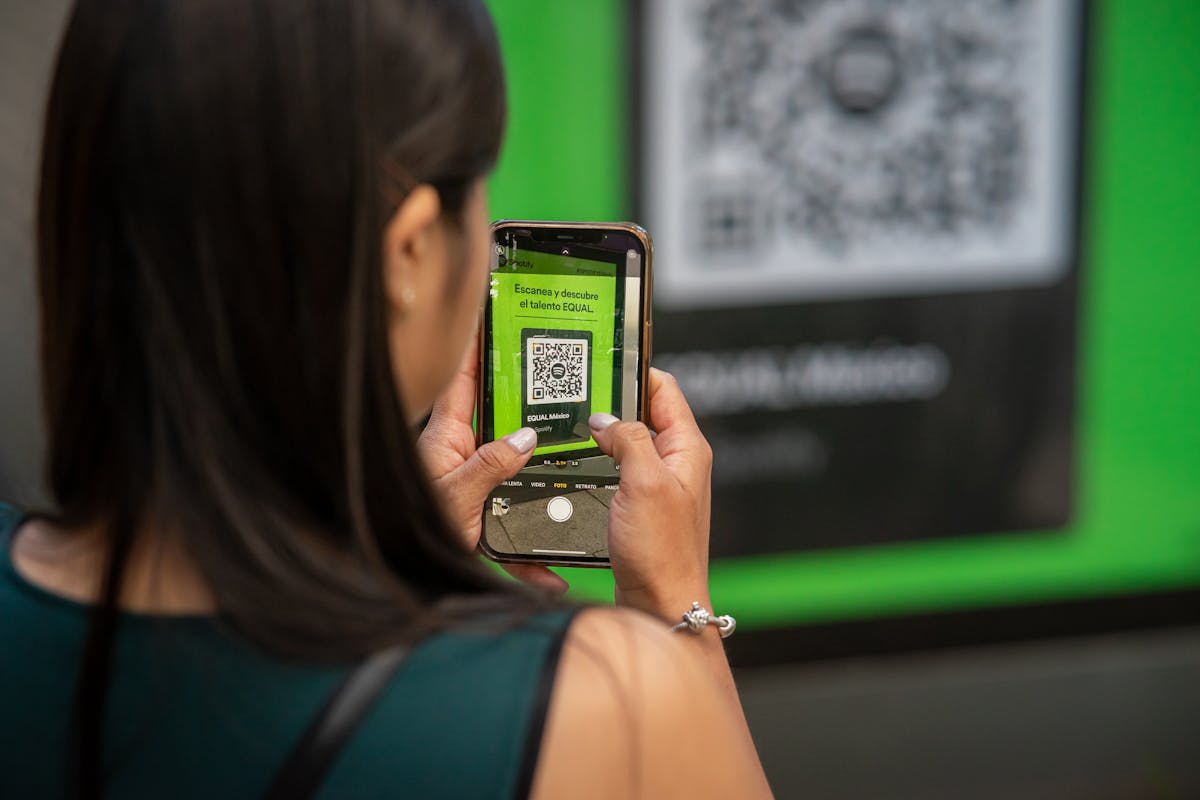
Most QR code generators have a setting called error correction, with four options: L, M, Q and H. It's easy to leave on the default, but it decides whether your code still scans after it gets scratched, folded, smudged — or covered by a logo.
What error correction does
A QR code doesn't just store your data. It also stores extra recovery data calculated with Reed–Solomon codes, the same family of techniques used on CDs and DVDs. If part of the pattern is missing or unreadable, the scanner uses that recovery data to rebuild what's lost.
The more recovery data, the more damage the code can survive — but the extra data needs space, so the code gets denser.
The four levels
| Level | Name | Roughly recoverable |
|---|---|---|
| L | Low | ~7% of the code |
| M | Medium | ~15% |
| Q | Quartile | ~25% |
| H | High | ~30% |
These percentages refer to damaged codewords, not just any area of the image — damage to the three large corner squares (finder patterns) can still stop a code from scanning.
The trade-off: density
For the same content, a higher level means more modules (the small squares). A denser code:
- Needs to be printed larger to scan reliably from the same distance.
- Is harder to read on low-resolution screens or from far away.
- Takes slightly longer for older phone cameras to lock on.
So H isn't automatically "best". For a short URL displayed on a clean screen, L or M produces a simpler, faster-scanning code.
Which level should you choose?
- L — codes shown on screens, in slides or emails, where they won't get damaged.
- M — the everyday default for most print: flyers, posters, business cards.
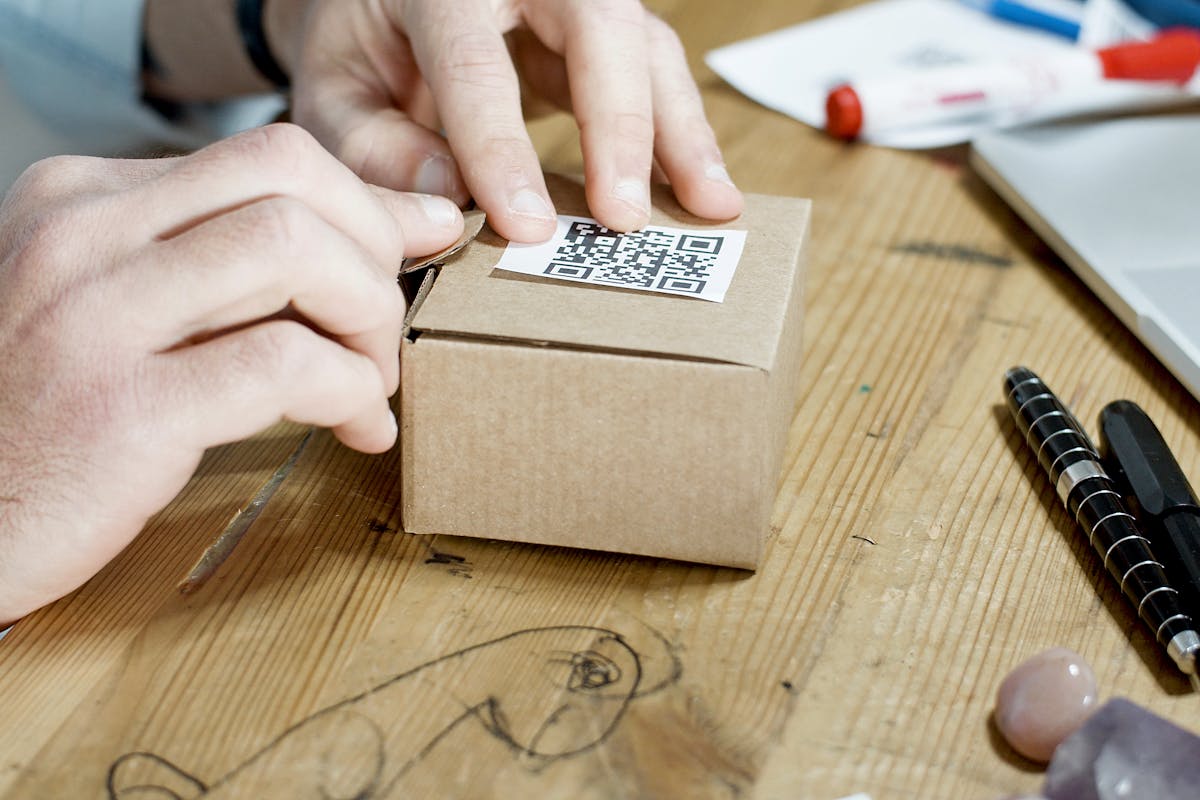
- Q — outdoor or industrial use: signs, labels on products that get handled, packaging that travels.
- H — any code with a logo in the middle, or codes that will get dirty, scuffed or partly covered.
Why logos need level H
A logo in the centre of a QR code is deliberate damage — it hides modules the scanner expects. Error correction is what fills them back in. The bigger the logo, the more you rely on it.
That's why the QR Code Generator switches to High (H) automatically as soon as you add a logo, and limits how large the logo can be for the chosen level. Our guide How to Add a Logo to a QR Code Without Breaking It covers sizing in detail.
How to set it
- Open the free QR Code Generator and enter your content.
- Under the style options, open Error correction and choose L, M, Q or H. The default is M.
- Check the preview, then download PNG or SVG.
- Test the printed version with two different phones before a big print run.
FAQ
Does higher error correction make the file bigger? The code has more modules, but a PNG or SVG of it is still tiny.
Can error correction fix a code that's too small? No. It recovers missing data, not modules too small for the camera to resolve. Print larger instead.
Does it matter for dynamic QR codes? Yes, the same rules apply. A dynamic code's short URL keeps the pattern simple, which leaves room for a higher level.
Try it now
Pick the right level in the free QR Code Generator.
Related reading
Read Static vs Dynamic QR Codes and How to Scan a QR Code Without an App.