A QR code that scans from your laptop screen may fail after it is printed on a small label or placed under a glossy cover. Printing introduces a different set of conditions: physical size, ink, material, glare, and the distance at which people use their phones.
Create the code with the QR Code Generator, then test a physical proof before ordering a full run. A short checklist can prevent a correct digital design from becoming an expensive print problem.
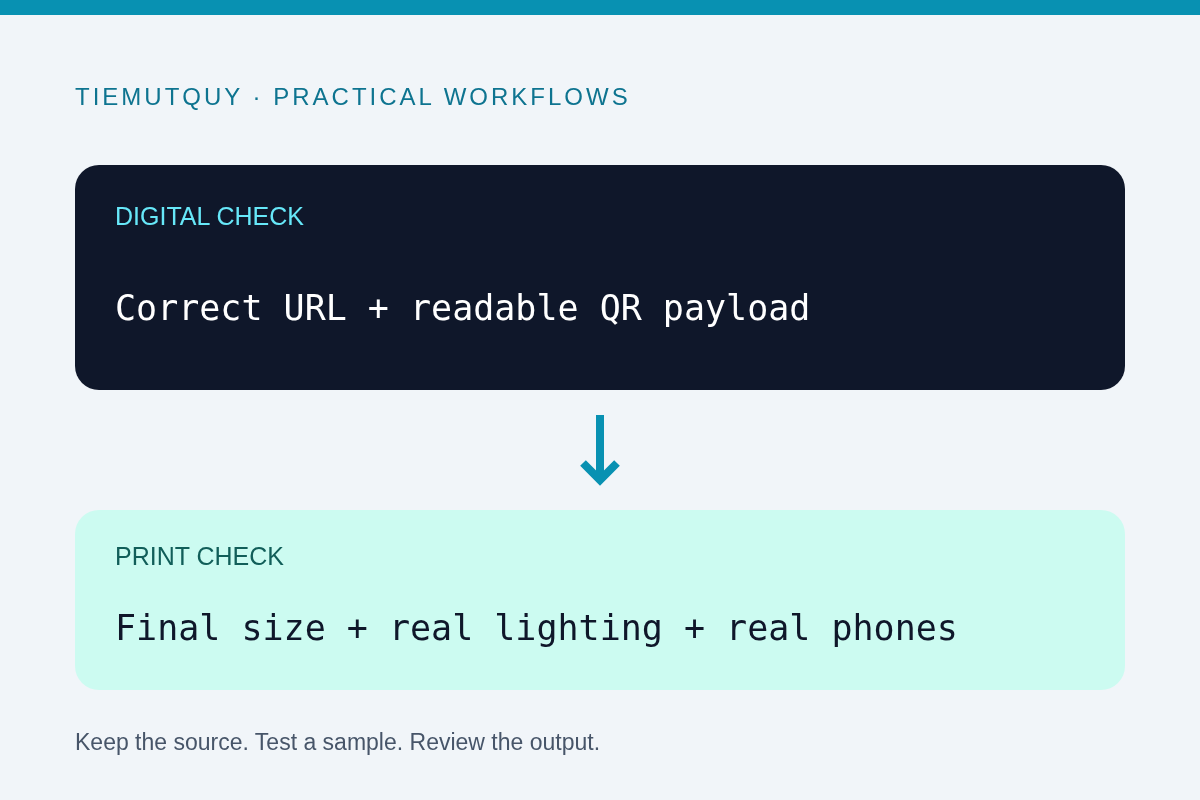
Verify the payload before the design
Scan the initial code and read the destination carefully. Confirm the protocol, domain spelling, path, and any campaign parameters. A perfectly readable code can still send customers to the wrong page.
For a menu or price list, open the destination on a phone without an existing login session. Check that it loads, uses readable text, and does not require access that ordinary customers lack. If the destination is a file, confirm that the published link is intended for public use.
Avoid embedding an unnecessarily long address. A shorter payload can produce a less dense symbol, though a redirect introduces another service to maintain. Choose a stable destination that you control whenever possible.
Preserve a clear border and strong contrast
Keep an empty border around the symbol. QR Code developer DENSO WAVE describes the required clear area in its QR margin guidance. Do not push text, artwork, or a decorative frame into that space when laying out the printed piece. The QR generator includes a margin setting; check the exported file and the final layout rather than assuming the designer preserved it.
Dark modules on a light, plain background are a practical starting point. A contrast warning can flag a risky color combination, but passing a software check does not guarantee reliable scanning on every printer or material.
If you add a logo, keep it modest and test again. Higher error correction can help with limited damage, but it does not make an oversized logo or missing border harmless. Compare a plain version with the branded version when diagnosing failures.
Export for the actual production workflow
The generator supports PNG and SVG downloads. SVG is useful when a print workflow can preserve vector shapes; a sufficiently detailed PNG can also work when placed without destructive resizing.
Do not stretch the code into a rectangle, blur it with a filter, or place it over a busy photo. Check that the export has not been cropped. Keep a clean original file so you can regenerate the artwork without copying a low-quality image from a messaging app.
There is no single physical size that guarantees scanning in every situation. Payload density, print quality, camera performance, viewing distance, and lighting all matter. Test the intended design at the actual dimensions rather than relying on a universal size claim.
Print one proof and test it in context
Print a proof at 100 percent of the intended size. Test it with more than one phone camera if available, including a device that is not your newest model. Try normal use distances and angles rather than holding the camera in an ideal position every time.
For a café menu, place the proof where customers will see it. Check glare from overhead lights, shadows, and the effect of a protective sleeve. For packaging, test the curved surface and the material actually being used.
The QR Code Scanner can inspect a supported image, but decoding the digital file is not a substitute for this physical test. Keep those two checks separate in your approval notes.
Recheck after the destination changes
Before approving the print run, click through the full journey once more. Check redirects, expired file links, cookie banners, and mobile navigation. Keep a visible short instruction such as “Scan for the menu” and a fallback address where space permits.
After printing, periodically verify that the destination remains available. A static QR symbol does not expire on a timer, but the website, hosting account, or redirect behind it can stop working. Assign responsibility for maintaining that destination.
Frequently asked questions
Does scanning from a screen prove the printed code will work?
No. Test a physical proof at its final size and in realistic lighting.
Can error correction fix every design problem?
No. It cannot guarantee recovery from excessive obstruction, poor printing, or an unsuitable layout.
Should I test again after adding a logo?
Yes. Branding changes the symbol's usable pattern, so repeat both digital and physical scan checks.