Happy customers rarely leave reviews because finding your business on Google and tapping through to "Write a review" takes too long. A QR code at the till, on the table or on the receipt cuts it to one scan.

Step 1: Get your Google review link
- Sign in to the Google account that manages your Google Business Profile.
- Search Google for your business name, or open the Business Profile manager.
- Click Ask for reviews (or "Get more reviews").
- Copy the short link, which looks like
https://g.page/r/…/review.
Open the link on your phone to check it goes straight to the review box.
Step 2: Turn the link into a QR code
- Open the free QR Code Generator.
- Paste your review link.
- Optional: add your logo and brand colours. Keep strong contrast — dark code on a light background.
- Set error correction to High (H) if you add a logo.
- Download as PNG for screens and small prints, or SVG for large signs and professional printing.
The QR code is static: it holds the link itself, never expires and works without our site.
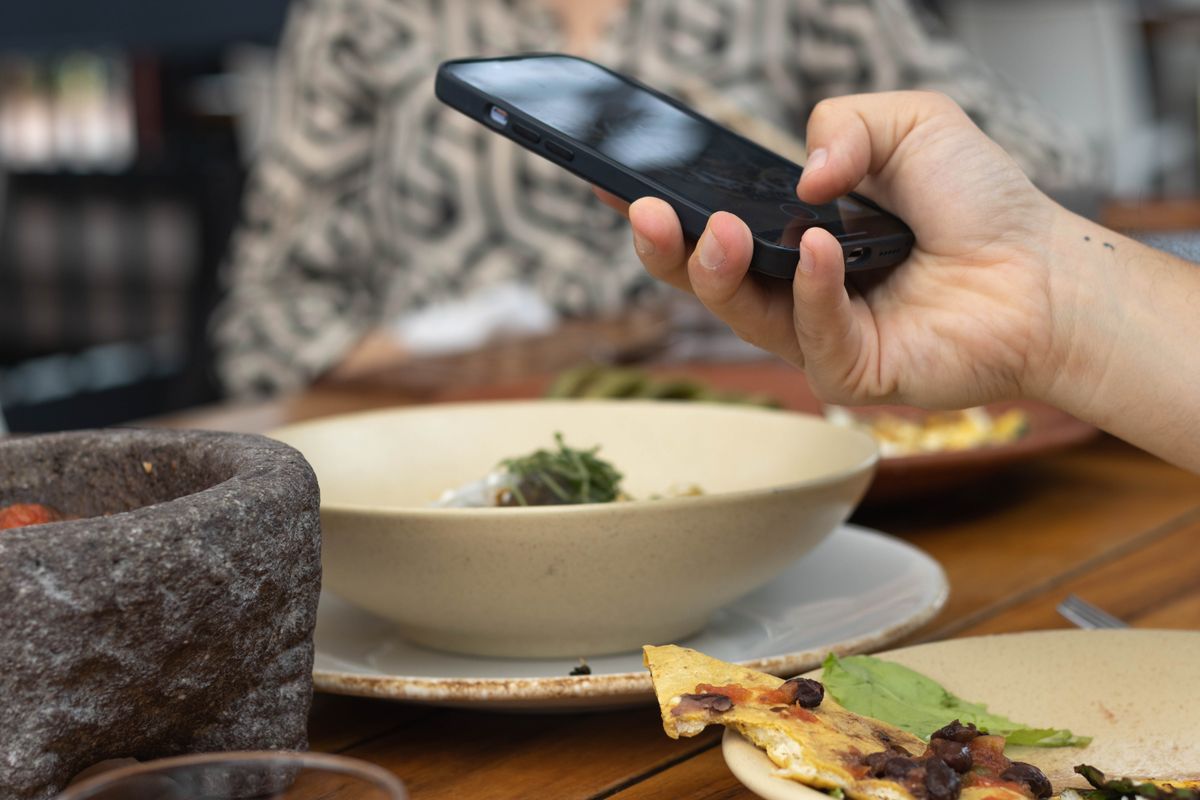
Step 3: Put it where customers wait
- Counter and till — next to the card machine.
- Tables — on menus or a small table tent.
- Receipts and invoices — print the code at the bottom.
- Packaging and thank-you cards for online orders.
- Email signatures and follow-up messages — use the link itself there.
Add a short call to action next to the code: "Enjoyed your visit? Scan to leave us a review — it takes 30 seconds."
Print tips
- Print it at least 2 × 2 cm; 3–4 cm is safer on tables.
- Test the printed code with two different phones before printing a batch. The QR Code Scanner can check it from a photo.
- Don't place it on glossy surfaces that reflect light.
Stay within Google's rules
Google doesn't allow offering discounts or gifts in exchange for reviews, or asking only happy customers. Ask everyone, and reply to reviews — both good and bad.
FAQ
Will the QR code stop working? No, as long as your review link stays valid.
Can I track scans? Not with a static code. Count reviews before and after you start using it.
Try it now
Create your review QR code with the free QR Code Generator.
Related reading
See 5 Tips for Creating Professional QR Codes for Small Businesses and How to Add a Logo to a QR Code Without Breaking It. Browse the full blog for more guides.